January 22, 2026
5 min read
Getting Started with Baxter: From Install to a Calm Inbox

Baxter is a Gmail companion — a Chrome extension plus a web dashboard — that helps you organize senders, unsubscribe in bulk, label mail automatically, and auto-clean the junk. Here's how to get up and running.
1. Install and connect
Add Baxter Organizer & Unsubscribe from the Chrome Web Store and open Gmail. You'll be prompted to connect your Google account so Baxter can organize your mailbox on your behalf. Baxter only requests the access it needs and never reads your email for advertising.
2. Meet the Senders view
The heart of Baxter is the Senders view. Instead of an endless list of individual messages, you see every sender emailing you — ranked by how often they show up. This is where the noise becomes manageable: a few dozen senders instead of thousands of emails.
The Senders view groups your inbox by who's emailing you.
3. Do your first cleanup
Work down your top senders and make one decision each:
- Unsubscribe from newsletters you never open.
- Do nothing for 30 days to quietly mute a sender without unsubscribing.
- Auto-Clean to keep future mail from that sender out of your inbox automatically.
4. Turn on automatic labels
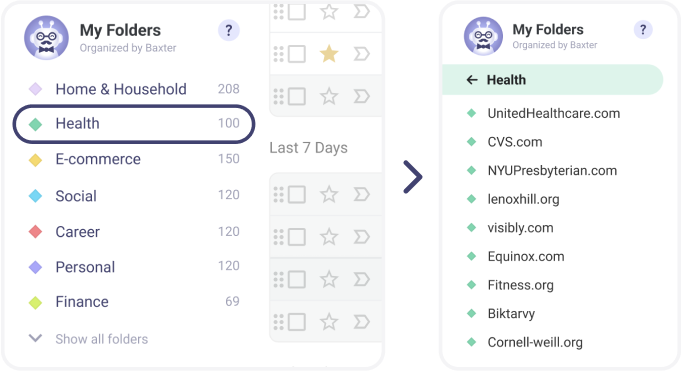
Flip on automatic labeling and Baxter sorts incoming mail into categories — Finance, Shopping, Work — as it arrives. Your inbox stays focused on what's actually new.
That's it. A few minutes of setup buys you an inbox that keeps itself organized.